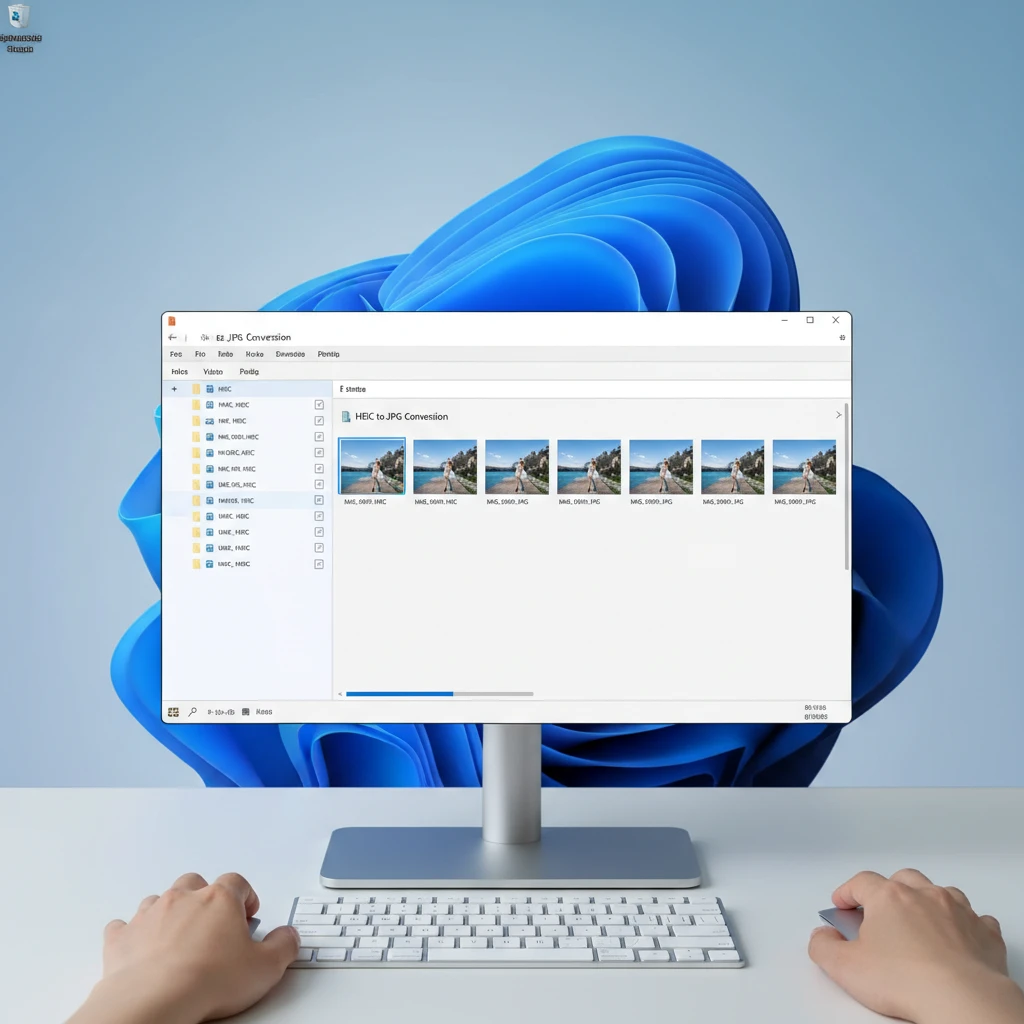
Apple’s HEIC (High Efficiency Image Container) format has become the default for iPhone photos since iOS 11, offering superior compression while maintaining image quality. However, Windows users often face compatibility issues when trying to view or share these files. Converting HEIC to JPG format solves this problem, and Windows 11 provides several methods to batch convert multiple files efficiently.
Understanding HEIC vs JPG Formats
HEIC files are typically 50% smaller than equivalent JPG files while maintaining the same visual quality. However, JPG remains the universal standard supported by virtually all devices, browsers, and software applications. Converting HEIC to JPG ensures maximum compatibility across different platforms and devices.
Method 1: Using Windows 11 Built-in Tools
Installing HEIF Image Extensions
Before converting HEIC files on Windows 11, you need to install the HEIF Image Extensions from the Microsoft Store. This free extension enables Windows to recognize and process HEIC files natively.
- Open Microsoft Store from the Start menu
- Search for “HEIF Image Extensions”
- Click “Get” to download and install the extension
- Restart your computer to complete the installation
Using Photos App for Batch Conversion
Windows 11’s Photos app can handle HEIC files once the extension is installed:
- Select all HEIC files you want to convert in File Explorer
- Right-click and choose “Open with” > “Photos”
- In Photos app, click the three dots menu and select “Save as”
- Choose JPG format and specify the output location
- Repeat for each file or use the slideshow feature for faster processing
Method 2: Using Paint App
Windows 11’s updated Paint app supports HEIC files and offers a simple conversion method:
- Open Paint from the Start menu
- Click “File” > “Open” and select your HEIC file
- Once the image loads, click “File” > “Save as”
- Choose “JPEG picture” from the format dropdown
- Select your desired quality settings
- Click “Save” to complete the conversion
For batch processing with Paint, you’ll need to repeat this process for each file individually, making it less efficient for large quantities.
Method 3: Third-Party Software Solutions
HEIC to JPG Converter by iMazing
This free tool offers excellent batch conversion capabilities:
- Download and install the software from the official iMazing website
- Launch the application and click “Select Files” or drag and drop your HEIC files
- Choose output format as JPG and set quality preferences
- Select the destination folder
- Click “Convert” to process all files simultaneously
CopyTrans HEIC for Windows
Another reliable option that integrates with Windows Explorer:
- Install CopyTrans HEIC from the official website
- Right-click any HEIC file in File Explorer
- Select “Convert to JPEG with CopyTrans”
- Choose conversion settings and output location
- The tool automatically processes all selected files
Method 4: Online Conversion Tools
For users who prefer not to install additional software, several online converters offer batch HEIC to JPG conversion:
- CloudConvert: Supports up to 25 files simultaneously
- Convertio: Handles multiple files with quality preservation options
- Online-Convert: Offers advanced compression settings
When using online tools, ensure your internet connection is stable and be mindful of file size limitations and privacy considerations.
Maintaining Image Quality During Conversion
To preserve maximum image quality when converting HEIC to JPG:
- Set JPG quality to 95-100% in conversion settings
- Avoid re-compressing already converted files
- Keep original HEIC files as backups when possible
- Use tools that support lossless conversion options
Automating the Conversion Process
For users who regularly receive HEIC files, setting up automatic conversion can save time:
- Configure Windows 11 to automatically open HEIC files with your preferred converter
- Set up folder monitoring with third-party tools
- Use batch file scripts for command-line conversion
- Create desktop shortcuts for frequently used conversion settings
Troubleshooting Common Issues
If you encounter problems during HEIC to JPG conversion:
- Ensure HEIF Image Extensions are properly installed and updated
- Check that your HEIC files aren’t corrupted by testing with different conversion tools
- Verify sufficient disk space for output files
- Close other applications that might be using the image files
- Try converting smaller batches if processing large quantities
Frequently Asked Questions
Can I convert HEIC to JPG without losing quality?
Yes, when using high-quality settings (95-100%), the visual difference between HEIC and JPG is negligible. However, JPG uses lossy compression, so there will be some technical quality loss, though it’s typically imperceptible to the human eye.
Why can’t I see HEIC files in Windows 11?
Windows 11 requires the HEIF Image Extensions to display HEIC files. Download this free extension from the Microsoft Store to enable native HEIC support in File Explorer and other Windows applications.
Which method is fastest for batch conversion?
Third-party tools like iMazing HEIC Converter or CopyTrans HEIC typically offer the fastest batch conversion speeds, as they’re specifically designed for this purpose and can process multiple files simultaneously.
Are online HEIC converters safe to use?
Reputable online converters are generally safe, but consider privacy implications when uploading personal photos to third-party servers. For sensitive images, local conversion tools are recommended.
Can I convert HEIC files back to their original format?
Once converted to JPG, you cannot restore the original HEIC format with all its original data intact. Always keep backup copies of original HEIC files if you might need them later.