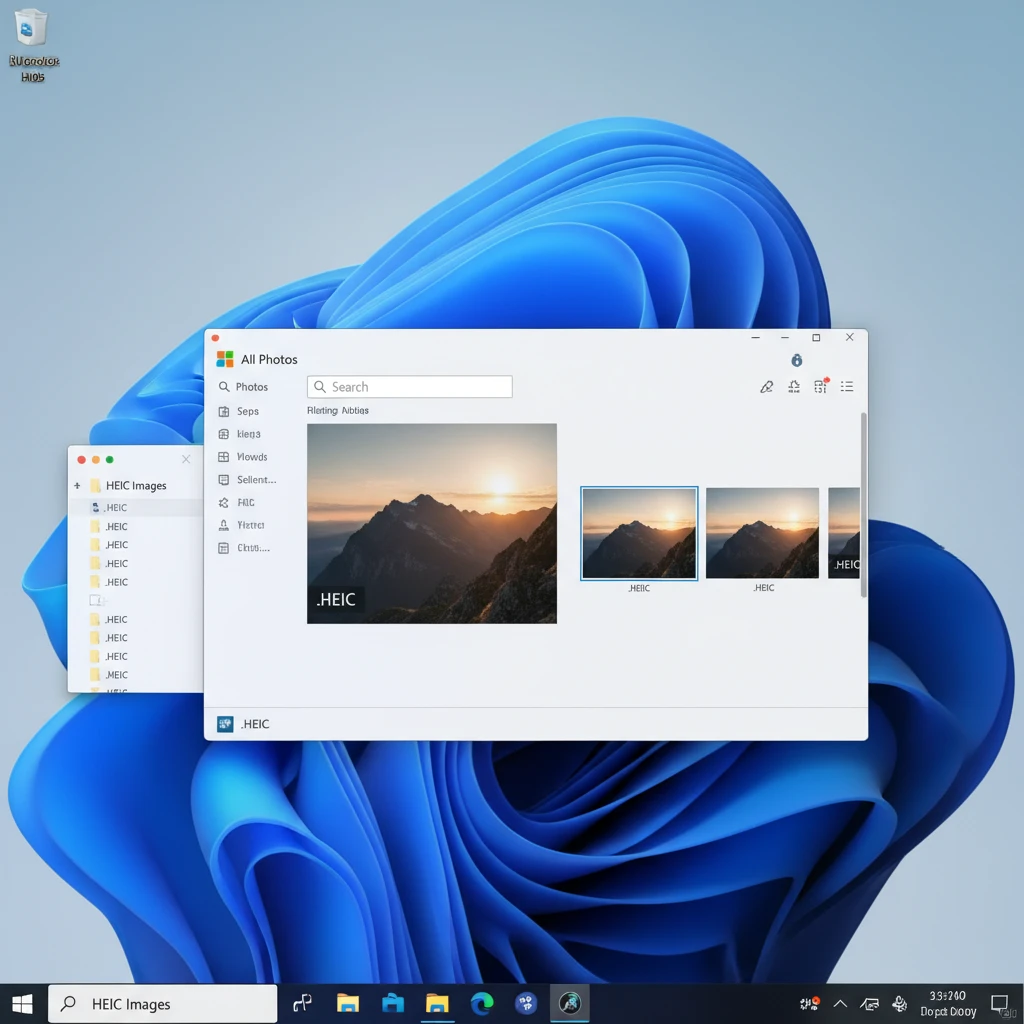
If you’ve received photos from an iPhone or iPad user and can’t open them on your Windows 11 PC, you’re likely dealing with HEIC files. Don’t worry – learning how to open HEIC files on Windows 11 is straightforward once you know the right methods.
This comprehensive guide will walk you through everything you need to know about viewing HEIC files on your Windows 11 computer, from using built-in support to alternative solutions that work in minutes.
What Are HEIC Files and Why Can’t Windows Open Them?
HEIC (High Efficiency Image Container) is Apple’s modern image format that replaced JPEG as the default camera format on iPhones and iPads starting with iOS 11. This format offers several advantages:
- Smaller file sizes while maintaining high image quality
- Better compression than traditional JPEG
- Support for multiple images in a single file
- Advanced features like depth information and Live Photos
The challenge arises when iPhone users share these photos with Windows users. While HEIC is excellent for Apple devices, Windows 11 doesn’t include native HEIC support out of the box, leading to the common “can’t open this file” error.
Windows 11’s Built-in HEIC Support: What You Need to Know
Good news! Windows 11 can actually support HEIC files, but you need to install the right extensions first. Microsoft provides official codec support through the Microsoft Store, making it the most reliable way to open HEIC files on Windows 11.
The key components you’ll need are:
- HEIF Image Extensions – Enables HEIC file support
- HEVC Video Extensions – Required for some HEIC files with video content
Once installed, your Windows 11 Photos app and File Explorer will be able to handle HEIC files just like any other image format.
Step-by-Step: How to Install HEIC Support on Windows 11
Follow these simple steps to enable native HEIC file support:
Method 1: Install HEIF Image Extensions
- Open the Microsoft Store app on your Windows 11 PC
- Search for “HEIF Image Extensions” in the search bar
- Click on the official Microsoft extension (it should be free)
- Click the “Get” or “Install” button
- Wait for the installation to complete
- Restart your computer to ensure the changes take effect
Method 2: Install HEVC Video Extensions (If Needed)
- Return to the Microsoft Store
- Search for “HEVC Video Extensions”
- Install the extension (note: this may have a small fee)
- Restart your PC after installation
Testing Your Installation
After restarting, try opening a HEIC file by:
- Right-clicking on the HEIC file
- Selecting “Open with”
- Choosing “Photos” from the list
If everything is working correctly, your HEIC file should now open in the Windows Photos app.
Alternative Methods to Open HEIC Files on Windows 11
If the built-in method doesn’t work for you, or if you prefer other options, here are reliable alternatives:
Third-Party HEIC Viewers
CopyTrans HEIC for Windows is a popular free option:
- Download CopyTrans HEIC from their official website
- Install the software following the setup wizard
- Once installed, HEIC files will automatically open in Windows Photo Viewer
- You’ll also see HEIC thumbnails in File Explorer
Other reliable third-party viewers include:
- IrfanView (with HEIC plugin)
- XnView MP
- FastStone Image Viewer
Using File Explorer Preview
Once you have HEIC support installed, you can preview files directly in File Explorer:
- Open File Explorer and navigate to your HEIC files
- Click on a HEIC file once to select it
- Look at the preview pane on the right side
- If you don’t see a preview pane, click View > Preview pane
Quick Solution: Converting HEIC to JPG Online
Sometimes you just need to view or share a HEIC file quickly without installing software. Online HEIC to JPG converters offer an instant solution for opening HEIC files on Windows 11:
When to Use Online Conversion
- You only have a few HEIC files to convert
- Native support isn’t working properly
- You’re on a shared or work computer where you can’t install software
- You need the images in JPG format for compatibility
How Online Conversion Works
- Visit a reliable HEIC to JPG converter website
- Upload your HEIC files using the drag-and-drop interface
- Wait for the automatic conversion to complete
- Download the converted JPG files to your computer
This method gives you universal JPG files that work on any device and can be easily shared or printed.
Troubleshooting Common HEIC Issues on Windows 11
If you’re still having trouble with HEIC files, try these solutions:
“Photos App Can’t Open This Picture” Error
- Ensure both HEIF Image Extensions and HEVC Video Extensions are installed
- Update Windows 11 to the latest version
- Reset the Photos app: Settings > Apps > Photos > Advanced options > Reset
No Thumbnails in File Explorer
- Restart File Explorer (Ctrl + Shift + Esc > Windows Explorer > Restart)
- Clear thumbnail cache using Disk Cleanup
- Ensure preview pane is enabled in File Explorer
Extensions Won’t Install from Microsoft Store
- Sign in to your Microsoft account in the Store app
- Check if your Windows 11 version supports the extensions
- Try installing from a web browser instead of the Store app
- Consider using third-party alternatives like CopyTrans HEIC
Files Open But Look Corrupted
- Try opening the same file on another device to verify it’s not corrupted
- Update your graphics drivers
- Use a different HEIC viewer to confirm the issue
Frequently Asked Questions
Can Windows 11 open HEIC files without additional software?
Windows 11 can open HEIC files natively, but only after installing the HEIF Image Extensions from the Microsoft Store. Without this extension, you’ll get an error when trying to open HEIC files.
Is it safe to install HEIC extensions from the Microsoft Store?
Yes, the HEIF Image Extensions from Microsoft are completely safe and officially supported. They’re developed by Microsoft specifically for Windows systems and won’t harm your computer.
Why are some HEIC files larger than others?
HEIC file sizes vary based on image resolution, quality settings, and whether they contain additional data like depth information or Live Photos. Some HEIC files may also contain multiple images or video content.
Can I convert HEIC files to JPG permanently?
Yes, you can convert HEIC files to JPG using online converters, desktop software, or even some photo editing apps. This creates a permanent JPG copy while keeping your original HEIC file intact.
Will opening HEIC files slow down my Windows 11 computer?
No, opening HEIC files shouldn’t significantly impact your computer’s performance. The HEIC format is actually designed to be more efficient than older formats like JPEG.
What’s the difference between HEIC and HEIF?
HEIF (High Efficiency Image Format) is the container format, while HEIC is specifically the variant used by Apple devices. When people say “HEIC files,” they’re usually referring to Apple’s implementation of the HEIF standard.